
Every once in a while you try to assign a particular address to a recipient in Active Directory Users & Computers, only to be told someone already has that address! Email addresses need to be unique — two recipients can’t have the same email address.
Here are a few different ways to find out whether an email address is already used, and the recipient it belongs to.
-
Resolve recipient in Outlook or OWA
Create a new message in Microsoft Outlook or OWA, enter the email address and then press CTRL-K. If the recipient is not hidden from Address Lists/GAL, the email address resolves to the recipient’s Display Name.
-
Request a delivery receipt
If the recipient is hidden from Address Lists, send a message to it and request a Delivery Receipt. The Delivery Receipt option is on the Options tab in Outlook.
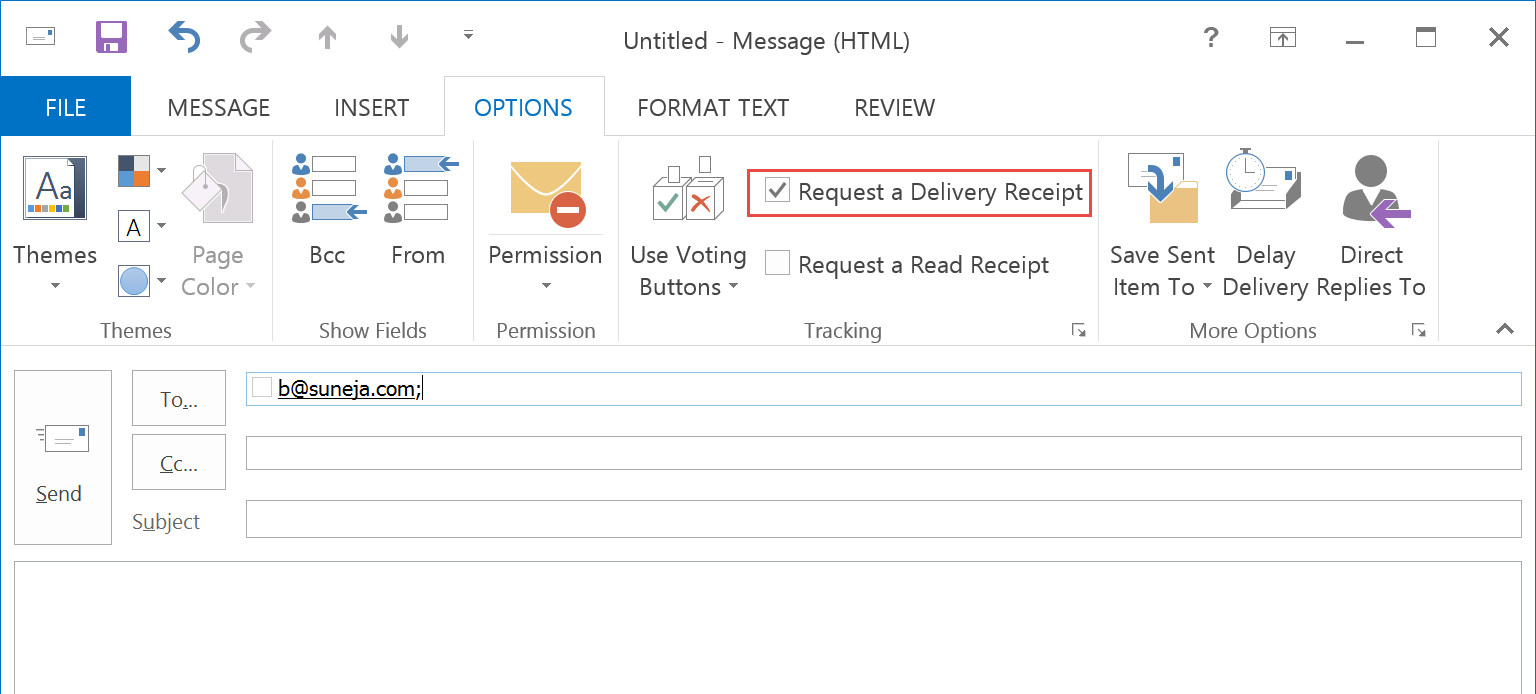
Figure 1: Select the Request a Delivery Receipt option in Outlook 2013 -
Search in the Exchange Admin Center (EAC)
If you’re on Exchange 2013 or Exchange Online, you can use the EAC to easily search recipients. Go to Recipients > Mailboxes and type the address in the search box.
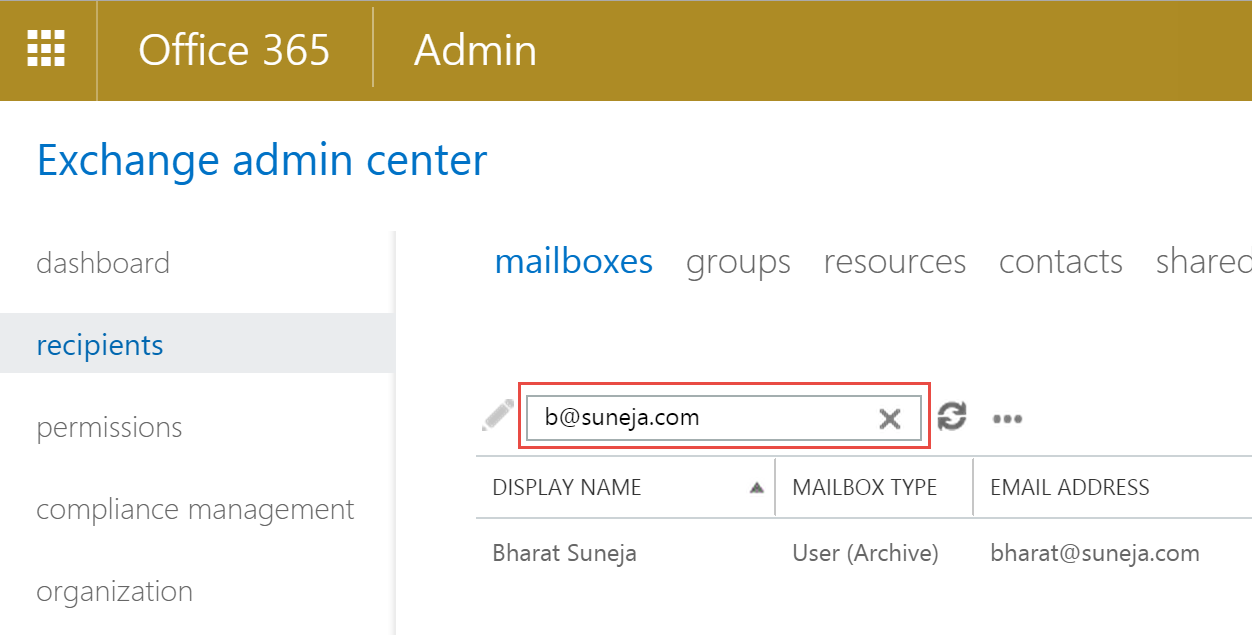
Figure 2: Use the search box in the EAC in Exchange 2013 and Exchange OnlineThe caveat, and the reason why this only counts as half – when you’re on the Recipients > Mailboxes page in EAC, you can only search mailboxes. To search other types of recipients such as distribution groups, you would have to navigate to the corresponding tab or page in EAC. There’s an Advanced Search option in EAC, but it also limits the recipient type (selected via a drop-down) to the page/tab you’re on. For example, if you’re on the Mailboxes tab, the available Recipient types options are user mailbox, linked mailbox, legacy mailbox and remote user mailbox. Similarly, on the Groups tab, the options are mail-enabled distribution group, mail non-universal group, mail universal security group and dynamic distribution group.
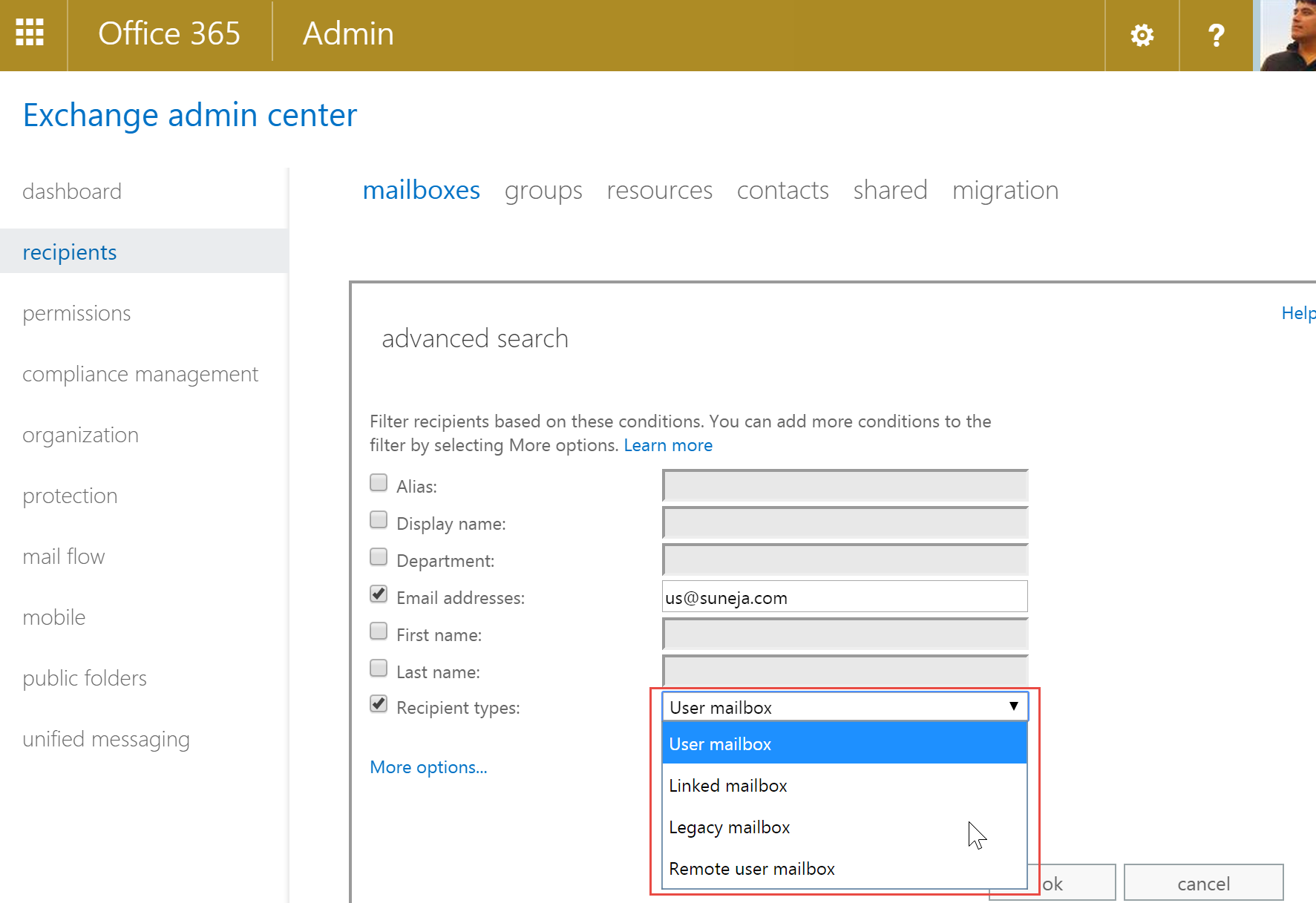
Figure 3: Advanced Search in EAC restricts the search to recipient types you can search -
Find email addresses using PowerShell/Exchange Management Shell (Exchange 2013/2010/2007)
In Exchange 2007 and later, you can use the Shell to easily and quickly find an email address. To get a list of recipients with a particular email address:
get-recipient | where {$_.emailaddresses -match “[email protected]”} | select name,emailaddresses
To get a list of all recipients with email addresses from a particular domain:
get-recipient | where {$_.emailaddresses -match “domain.com”} | select name,emailaddresses
-
Use a Saved Query in Active Directory Users and Computers
- In Active Directory Users & Computers (on Windows Server 2003), right-click Saved Queries container | New | Query
- Enter a name for the query, and click the Define Query button
- From the Find drop-down – select Custom Search | go to Advanced tab
- In the Enter LDAP Query text box, enter the query:
(proxyAddresses=smtp:[email protected])
This returns recipients of all types – users, mail-enabled contacts, public folders, and groups that have the address [email protected].
Click here to see a Flash demo.
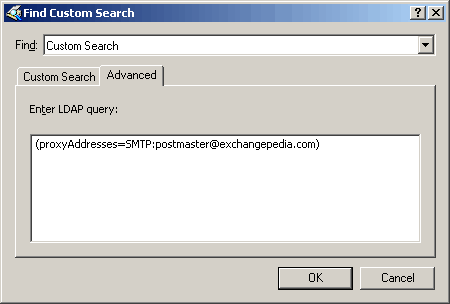
Figure 4: Use a custom query in Active Directory Users and Computers console -
Using CSVDE/LDIFDE to find an email address
Saved Queries isn’t available in the Windows 2000 version of ADUC. You can also use CSVDE or LDIFDE to export this information to a file, using the following command:
csvde -f outputfilename.csv -d “dc=domain,dc=com” -r “(&(mailnickname=*)(proxyAddresses=smtp:[email protected]))” -l name
Replace “dc=domain,dc=com” with your Active Directory domain name and suffix, and [email protected] with the exact email address you’re looking for.
To find all recipients who have an email address from a particular SMTP domain, you can use a wildcard, e.g.:
csvde -f outputfilename.csv -d “dc=domain,dc=com” -r “(&(mailnickname=*)(proxyAddresses=smtp:*@domain.com))” -l name
In the above example, only the name field is exported. All CSVDE/LDIFDE queries also return the object’s distinguishedName. To add more fields to the list, insert a coma after name and type new field names separated by a coma: e.g.
name,displayName,sAMAccountName,proxyAddresses,homeMDB
| Method | Exchange Online | Exchange 2013 | Exchange 2010 | Exchange 2007 | Exchange 2003 |
|---|---|---|---|---|---|
| Resolve recipient | Yes | Yes | Yes | Yes | Yes |
| Request Delivery Receipt | Yes | Yes | Yes | Yes | Yes |
| Search in EAC | Yes | Yes | No | No | No |
| ADUC Saved Query | No | Yes | Yes | Yes | Yes |
| PowerShell | Yes | Yes | Yes | Yes | No |
| CSVDE/LDFIDE | No | Yes | Yes | Yes | Yes |
Many thanks; a very useful tip!
Very nice indeed, this saved me a lot of time – thank-you.
It doesn’t work for me. Am I doing something worng? I have run other queries that work flawlessly. MMMM
Thanks
Muchas gracias. Me ha servidor de gran ayuda
Thanks! Option number 3 works a dream!
Daniel Harrison
We tried everything before checking your site. Option 3 solved our problem! Thanks.
Excellent Thx!
thank you! thank you! thank you! This worked perfect…
Thank you, LDAP query worked a treat!
I have wondered how to do this for ages (seems weird M$ doesn't make it easier!) – you are collectively amazing people (and alternate sentient life forms) :-)
Would be helpful to have more discussion of wildcards – for example, Exchange handles duplicate email addresses by appending numbers to the end of the user portion of the address. I want to find all addresses that have been created this way – e.g. *[email protected]. Searching on this in the Saved Query doesn't seem to work.
PERFECT!
[…] Content from this post has been merged with a previous post which shows how to find a recipient with a particular email address using ADUC‘s Saved Queries feature. Read the roll-up post which shows you five ways you can find an email address in Active Directory: HOW TO: Find an email address in Active Directory. […]
Option 3 sorted my issue also! Bloody email address was assigned directly to a public folder :).
I bet thats half the users who end up here’s problem too!
[…] hard. Too abstract. Why do you hate us, Microsoft? Thanks to Exchangepedia for supplying this solution. paul 0 Comments You are allowed to post a comment or to set […]
Thanks!! Very useful!
nice blog
Thanks, this worked perfect, saved me a lot of hassle
[…] HOW TO: Find an email address in Active Directory […]
[…] REF: (http://exchangepedia.com/2006/03/how-to-find-an-email-address-in-active-directory.html) […]
Thank you. Very useful.
Additionally for search with criteria:
In AD Users & Computers (on Windows Server 2003) –> Find Users, Contacts, and Groups –> Advanced –> Field –> (we select) Proxy Addresses
& (choose) “Condition” & “Value”= smtp: (a part or the whole email address).
Hi there,
I am hoping someone on here will be able to help. I am currently working on a task which requires me to clean up email lists in AD. I am having problems with people responding to me to let me know if they use a distribution list or not.
Is there a way of checking in AD via script if an email has been used in the last 6-12 months ?
I would appreciate your help
Cheers
Distribution list usage data is not stored in Active Directory.
What you can do is search message tracking logs to determine if a DL was used recently. Logs are retained for 30 days by default, so it won’t meet your immediate needs. Some organizations retain logs for much longer, either on Exchange servers or (a little more commonly) archived elsewhere (fileshares, databases, log management tools, etc.).
Third-party reporting tools also provide info about DL usage, including stale or unused DLs, but afaik most rely on mining message tracking logs.
See Are Distribution Groups really being used?.
I want to send and receive things via my email address?
[…] Exchangepedia | Find an email address … – Five and a half ways to find an email address in Microsoft Exchange and Active Directory. by Bharat Suneja […]
You may also use a tool such as my free version of AD report builder at sysmalogic.com to quickly get a list of users with their email address (and all their email addresses if needed).